
Optimizing Your Smart Storage Adapter Performance
Microchip’s Smart Adapter Performance Guide contains the tips you need to achieve optimal performance when using Adaptec® Smart Storage adapter products. Since all system configurations are slightly different, we highlight the areas that can significantly impact the overall performance of your storage adapters.
Whether you are setting up your first storage system configuration or are a seasoned pro, our Storage Adapter Performance Guide can help to configure your storage adapters for the best possible performance.
Why Optimize Your Adapters?
Optimizing your storage adapter performance ensures storage processing is handled by the storage adapter rather than the server, thus providing less strain on the CPU when writing and reading data. Since adapters are factory-configured to provide the best all-around settings for general-use environments, optimizing your adapter configurations to anticipate application storage demands can drastically improve performance.
So how can you carry out performance tuning on enterprise storage adapters that offer a full range of configurable options?
Performance Tuning Fundamentals
When performance tuning, infrastructure knowledge is power. You will need to understand how your system is utilizing applications to be able to improve performance.
Although each approach to optimal performance can be quite specific, much is governed by the same general principles. These include determining your drive topology, optimally configuring your server and verifying your operating system is the latest version.
Without ensuring all systems are optimized before performance tuning, performance results will be impacted.
You may want to ensure your adapters have the latest firmware and operating system driver installed. You can download the latest releases at start.adaptec.com. Next, verify your adapter is set to maximum performance mode and that the adapter is properly cooled. These steps above will help your adapters achieve optimal performance.
After setting up your adapters for optimal performance, you will need to look at your drive topology. Before beginning benchmark testing, you should benchmark each drive to verify each drive is performing at or near vendor specifications. At this time, you should also verify you are using the correct 12G certified cables and they are properly connected.


Once satisfied your adapters and drives are set up optimally, you also need to verify your server is optimally configured. This includes making sure your motherboard BIOS is updated to the latest revision and multi-threading* is enabled for optimal performance. The motherboard BIOS DDR clock setting should be set to the highest frequency supported and the DDR interleaving setting is set to maximum performance. Finally, verify the adapter is plugged into a PCIe slot directly connected to the CPU socket under test.
Finally, verify that your operating system has been updated to the latest version and set to maximum performance mode. CPU vendor and architecture can impact performance and additional fine tuning may be necessary to reach optimal performance.
Ready to Benchmark Test
Now that your system is in optimal testing condition, you are ready to set up your testing workloads. In-depth information on testing your HDDs and pre-conditioned SSDs, setting your ramp and run times, along with working set size can be found here.
Once you have completed testing, you can calculate and compare the estimated drive topology performance to the adapter’s maximum performance capability. For a single drive topology, performance should come very close to the drive vendor’s expected performance. As drives and expanders are added, sequential throughput should scale almost linearly until the drive topology, link topology or adapter limits are reached.
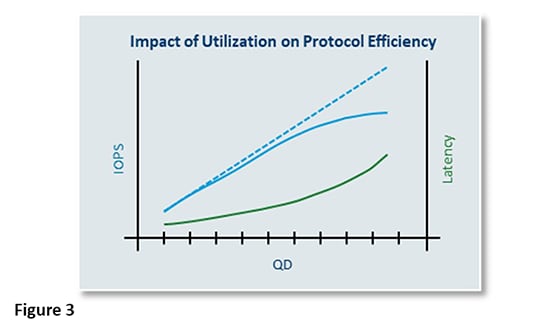
Benchmarking is not a quick tool for success but is a valuable tool to identify possible performance gaps or issues, and to understand if specific performance goals are being met. Once you identify an issue, implementing even a small change can help achieve optimal performance.
For detailed benchmark testing information for Adaptec® Smart Storage adapters, please visit our Self-Help Knowledgebase.
For further assistance, contact our skilled Apps Engineering Support Team at https://ask.adaptec.com/app/ask.
*For Intel® Xeon servers, multi-threading mode is referred to as Hyper-Threading mode. For AMD EPYC™ servers, multi-threading mode is referred to as Simultaneous Multi-Threading (SMT) mode.